Documentation
STAX EYES - Full User Guide
Complete setup and usage guide for tribe log monitoring, Discord alerts, call alerts, and detection settings.

Video Guide
📞 Important Feature: Phone Call Alerts
STAX EYES supports phone call notifications for critical red raid/damage events, in addition to Discord posts.
- Useful when you are away from your screen
- Daily call caps reduce spam
- Duplicate event checks prevent repeated call noise
1. Detection Panel
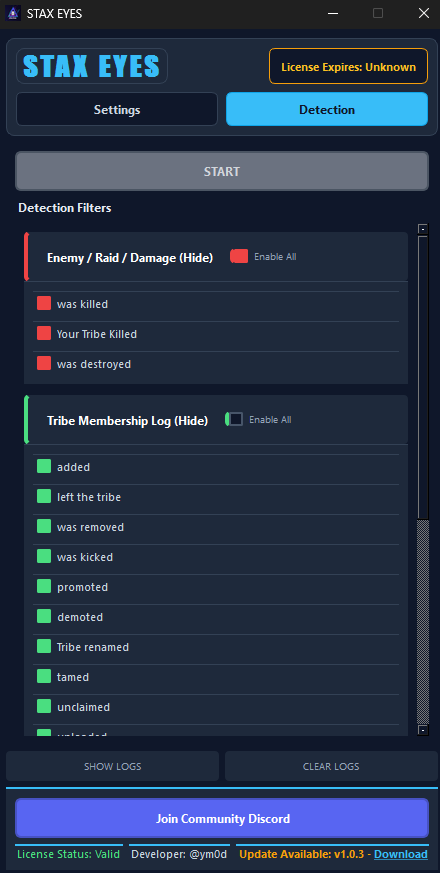
Detection panel overview
Detection Filters
The Detection tab lets you choose which tribe logs and events STAX EYES monitors and sends to Discord.
Enemy / Raid / Damage (Red Section)
- was killed - A player or dinosaur died.
- Your Tribe Killed - Your tribe killed a player or dinosaur.
- was destroyed - A structure was destroyed.
These logs are marked in Red. If enabled, they trigger Discord alerts and call alerts (if active).
Tribe Membership Log (Green Section)
- added - A player joined your tribe.
- left the tribe - A player left your tribe.
- was removed - A player was removed from the tribe.
- was kicked - A member was kicked.
- promoted - A member was promoted to admin.
- demoted - A member was demoted from admin.
- Tribe renamed - Tribe name was changed.
- tamed - A dinosaur was successfully tamed.
- unclaimed - A creature was unclaimed.
- uploaded - A creature was uploaded.
- downloaded - A creature was downloaded.
- claimed - A creature was claimed.
- froze - A creature was cryopodded.
- demolished - A structure was demolished.
- auto-decay - A structure decayed automatically.
- added to alliance - New alliance formed.
- removed from alliance - Alliance was ended.
- anti-meshing - Anti-meshing detection triggered.
- starved - A creature starved to death.
- crafted - An item was crafted.
- destroyed their - Tribe mate destroyed enemy structures.
You can enable each filter individually or click Enable All.
2. Settings Panel
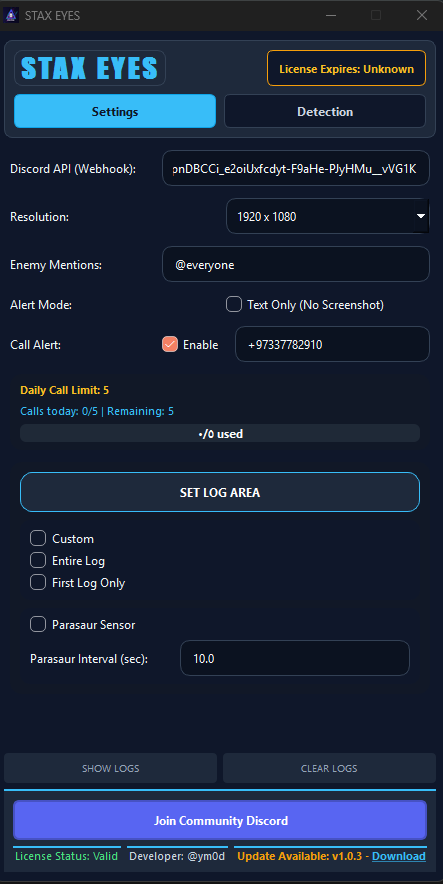
Settings panel overview
Discord API (Webhook)
To receive alerts in Discord, you must create a Discord Webhook.
How to Get a Discord Webhook
- Open your Discord server.
- Click Server Settings.
- Go to Integrations.
- Select Webhooks.
- Click New Webhook.
- Copy the Webhook URL.
- Paste it into the Discord API (Webhook) field.
Resolution
Choose your game resolution (example: 1920x1080). It must match your in-game resolution for accurate detection.
Enemy Mentions
This defines who gets mentioned in Discord when an enemy destroys or kills something.
- @everyone - Mentions everyone in the server.
- @role - Mentions a specific Discord role.
- <@123456789> - Mentions a specific Discord user by ID.
Alert Mode
If Text Only (No Screenshot) is enabled, STAX EYES sends text messages without screenshots.
Call Alerts
Enter your phone number and enable Call Alerts. When your tribe log turns red (raid/damage alert), you receive a phone call.
Daily Call Limit
- Maximum 2 calls per day (60 calls per month).
- No duplicate calls.
- No spam - repeated logs will not trigger extra calls.
Set Log Area
Use this if your resolution or UI scale is different.
- Custom - Manually select the log area.
- Entire Log - Captures the full tribe log.
- First Log Only - Captures only the newest (first) log.
Parasaur Sensor (Premium)
Premium feature. When enabled, if a Parasaur detects an enemy, STAX EYES sends a Discord alert and mention. You can set the detection interval in seconds.
Important Notes
- No duplicate alerts.
- No spam calls.
- Maximum 2 calls per day (60 calls per month, depending on your plan).
- Make sure your Discord webhook is correct.
- Your selected resolution must match your game resolution.